ShareX
Upload screenshots, files, and text to S.EE from ShareX
ShareX is an open-source screen capture and file sharing tool for Windows. S.EE provides custom uploader configs for ShareX, so you can upload screenshots, files, text, and code directly to S.EE and get a shareable link back.
See also: ShareX custom uploader docs
Custom uploaders
S.EE has configs for these upload types:
| Uploader | What it does |
|---|---|
| URL Shortener | Shortens URLs via S.EE |
| Text Uploader | Uploads text snippets |
| Code Uploader | Uploads code with syntax highlighting |
| Markdown Uploader | Uploads Markdown with rendered preview |
| Image & File Uploader | Uploads images and files |
Installation
Grab the .sxcu config files below. You can download them or import by URL in ShareX.
| Uploader | Download / Import Link |
|---|---|
| URL Shortener | https://assets.seecdn.com/files/sharex/S.EE_URL_Shortener.sxcu |
| Text Uploader | https://assets.seecdn.com/files/sharex/S.EE_Text_Uploader.sxcu |
| Code Uploader | https://assets.seecdn.com/files/sharex/S.EE_Code_Uploader.sxcu |
| Markdown Uploader | https://assets.seecdn.com/files/sharex/S.EE_Markdown_Uploader.sxcu |
| Image & File Uploader | https://assets.seecdn.com/files/sharex/S.EE_File_Uploader.sxcu |
Import
- Open ShareX
- Go to Destinations > Custom uploader settings
- Click Import, then either:
- Select the downloaded
.sxcufile - Paste the download URL directly
- Select the downloaded
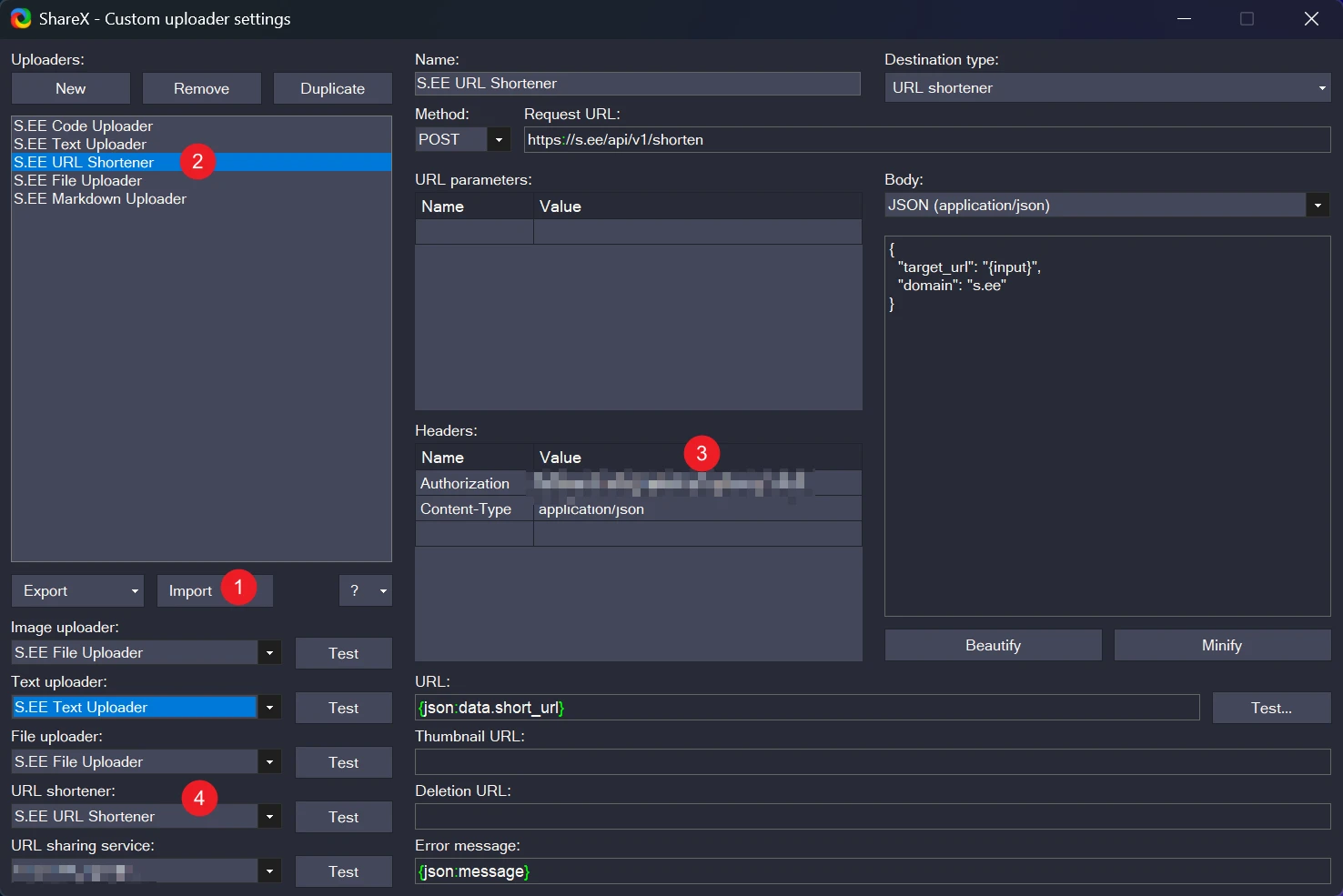
Set up your API key
- Get your API key from Tools > API Token
- In ShareX, open Custom uploader settings and select the S.EE uploader you imported
- In the Headers section, set the
Authorizationvalue to your API key
Don't share your API key publicly or commit it to version control.
Usage
Pick your uploaders
In ShareX, go to Destinations and assign the S.EE uploaders:
- URL shortener → S.EE URL Shortener
- Text uploader → S.EE Text Uploader, Code Uploader, or Markdown Uploader
- Image uploader → S.EE File Uploader
- File uploader → S.EE File Uploader
Upload
Use the ShareX hotkeys or right-click menu to shorten a URL, upload a screenshot, share a text snippet, etc. ShareX uploads to S.EE and copies the link to your clipboard.
Troubleshooting
| Issue | Fix |
|---|---|
| 401 error | Check that your API key is set correctly in the Authorization header |
| 403 error | Make sure your API key has the right permissions |
| File rejected | The file type might not be supported. See File Sharing for allowed types |
You can click Test in Custom uploader settings to verify everything works.